


Regularly checking and changing permissions for your apps is an essential practice for maintaining your privacy and ensuring your device operates securely. Apps often request access to various features, data, and hardware on your device, which can sometimes lead to unintended data sharing. Here’s a guide on how to effectively manage these permissions.
Why Check App Permissions?
- Privacy Protection: Limiting app access to personal data helps protect your privacy from unwanted tracking or data breaches.
- Security: Some apps may request permissions that they don’t actually need, potentially exposing your device to malware or other threats.
- Performance Enhancement: Unnecessary permissions can drain battery life and system resources, affecting your device’s overall performance.
How to Check and Change Permissions
To manage app permissions on your device, start by opening Settings and searching for Permissions Manager. This will typically open under the Privacy section.
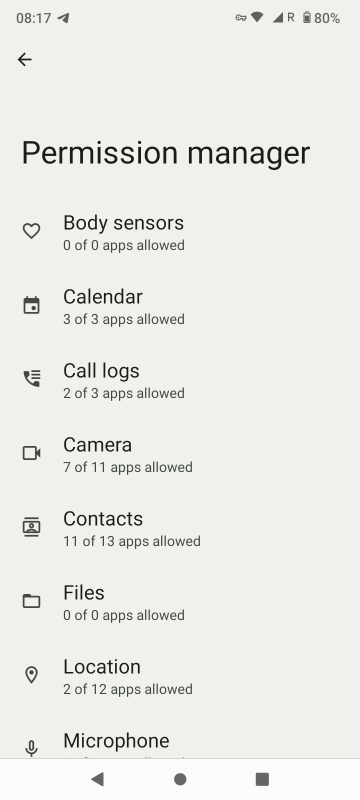
Once you’re in the Permissions Manager, you’ll see a list of your apps along with the specific permissions each one has, as shown in the image below. Adjust the settings to allow certain permissions only when the app is in use, rather than granting continuous access.
Be sure to remove any unnecessary permissions. For instance, consider whether it makes sense for a camera app to have access to your call logs.
For Android Devices
- Open Settings: Go to your device’s Settings.
- Apps & Notifications: Tap on “Apps” or “Apps & Notifications.”
- Select an App: Choose the app you want to review.
- Permissions: Tap on “Permissions.” Here, you’ll see what access the app requires.
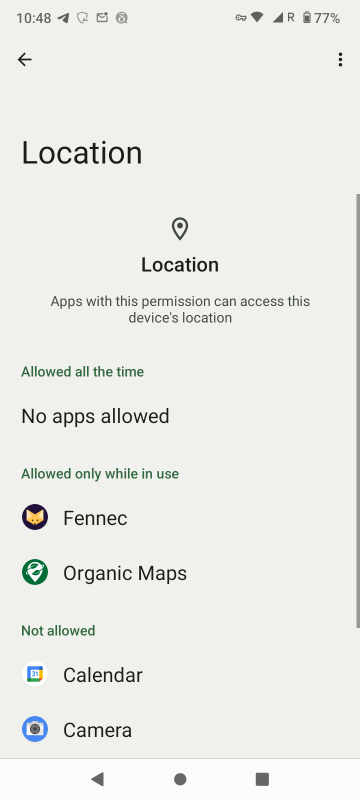
- Modify Permissions: Toggle permissions on or off as necessary. For example, if a game doesn’t need access to your location, turn that permission off. If in doubt, turn off the permission and let the app ask for it again if it needs it.
- Special app access: Also look under “Special app access” for apps with “Install unknown apps” permission, which are apps that can install other apps. You should typically not allow any app here, unless you specifically trust that app and understand why it might need to install other apps.
For iOS Devices
- Open Settings: Go to Settings on your iPhone or iPad.
- Scroll to App Settings: Scroll down to find the list of apps.
- Select an App: Tap on the app to see its permissions.
- Adjust Settings: You can enable or disable permissions such as Camera, Microphone, and Location based on your preferences. If in doubt, turn off the permission and let the app ask for it again if it needs it.
Best Practices for Managing Permissions
- Review Regularly: Set a reminder to check app permissions periodically, especially after major app updates.
- Be Wary of New Apps: When downloading new apps, carefully read the permission requests. If anything seems excessive or unnecessary, consider alternatives such as open source apps, which tend to be more respectful of user privacy than closed source apps.
- Uninstall Unused Apps: If you haven’t used an app in a while, uninstall it. This reduces potential security risks and frees up device space.
Conclusion
By actively checking and changing permissions on your apps, you can significantly enhance your security and privacy. Take control of what information you share and with whom. Implementing these practices will help maintain your digital safety and optimize your device’s performance. Regular checks can also build a habit of mindful app usage, fostering a more secure tech environment.